Your keyboard may look perfectly clean from your chair, but tilt it towards the light and the story can change quickly. Dust sits between the keys, fingerprints build up on frequently used letters, and tiny crumbs somehow find their way into spaces you never noticed. For Indian homes and offices, where dust, open windows, snacks at the desk and long working hours are common, a keyboard can become dirty surprisingly fast.
For most users, a light keyboard cleaning once a week and a deeper clean about once a month is a practical routine. If you eat at your desk, share a computer, have pets or work in a dusty environment, you may need to clean it more frequently. The aim is not only appearance—regular cleaning helps prevent grime from building up around keys and can keep the keyboard comfortable and reliable to use.
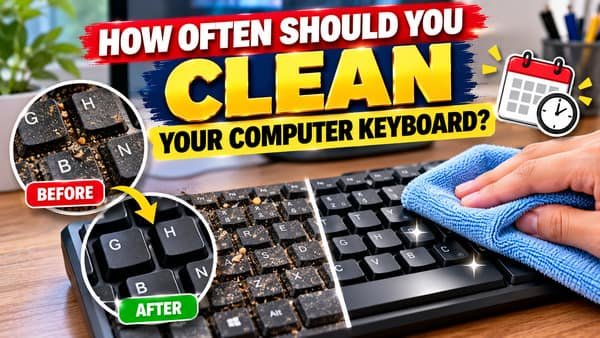
Keyboard Cleaning Frequency: Quick Overview
| Situation | Recommended Cleaning Routine |
|---|---|
| Normal home keyboard | Light clean weekly |
| Regular office keyboard | Weekly surface cleaning |
| Deep cleaning | About once a month |
| Shared keyboard | Clean more frequently |
| Eating at the desk | Weekly or whenever crumbs appear |
| Dusty room | Clean more often |
| Home with pets | Weekly cleaning is useful |
| Visible spill | Clean immediately |
| Sticky keys | Deep clean as soon as possible |
| Mechanical keyboard | Monthly cleaning; deeper cleaning when required |
| Laptop keyboard | Gentle weekly cleaning |
| Rarely used keyboard | Every few weeks may be sufficient |
Is Cleaning Your Keyboard Once a Week Enough?
For most personal computers, weekly surface cleaning is a good balance.
You do not need to remove every key or dismantle the keyboard each weekend. A quick clean should focus on loose dust, fingerprints, hair and debris.
This can take only a few minutes.
Turn the computer off or disconnect the keyboard first. Remove loose debris carefully and wipe the key surfaces using an appropriate soft cloth.
If you maintain this habit regularly, dirt is less likely to accumulate to the point where a major cleaning job becomes necessary.
A keyboard used occasionally at home may need attention less frequently. A keyboard used eight hours every day in an office will naturally collect dirt faster.
When Does a Keyboard Need Deep Cleaning?
A monthly deep clean is a useful general target for heavily used keyboards, but visual condition matters more than the calendar.
Look between the keys.
If you can see crumbs, hair or significant dust underneath, a deeper cleaning session is worthwhile.
Other warning signs include keys that feel sticky, keycaps with visible grime around their edges, or a keyboard that produces debris when gently tilted.
Mechanical keyboards can accumulate considerable material beneath their taller removable keycaps.
Laptop keyboards usually require a more conservative approach because the keys and internal components are integrated into the computer. Avoid removing laptop keycaps unless the manufacturer specifically provides instructions for doing so.
Why Do Keyboards Get Dirty So Quickly?
Hands constantly transfer oils and residue to frequently used keys.
Then there is the desk environment.
Eating biscuits, namkeen, sandwiches or other snacks while working creates crumbs. Pet hair can find its way between keys. Ceiling fans and open windows can increase the amount of airborne dust settling on a workstation.
In Indian cities, seasonal dust can make regular computer cleaning particularly useful.
People who work from home may also use the same keyboard for office work, entertainment, shopping and personal tasks, meaning it receives far more contact than expected.
A simple rule works well: the more frequently the keyboard is touched, shared or exposed to food and dust, the more frequently it should be cleaned.
How to Clean a Keyboard Safely
Start by turning off the computer. For a desktop keyboard, unplug it or disconnect the wireless connection where appropriate.
This prevents accidental keystrokes and reduces unnecessary electrical risk while cleaning.
Hold a standalone keyboard at an angle and gently encourage loose debris to fall out. Do not violently shake a laptop.
For material between the keys, use a suitable soft brush or compressed air according to the device manufacturer’s cleaning guidance.
If using compressed air, keep the can upright and use controlled bursts rather than spraying continuously.
Wipe key surfaces with a soft, lint-free cloth.
The cloth should be damp where appropriate—not dripping wet.
Can You Use Alcohol to Clean a Keyboard?
For many electronic devices, 70% isopropyl alcohol can be suitable for cleaning certain hard, non-porous exterior surfaces when used correctly. Major computer manufacturers provide cleaning guidance that permits appropriate alcohol-based solutions on some products.
But manufacturer instructions should come first.
Do not pour or spray alcohol directly onto the keyboard.
Apply a small amount to a cloth or cleaning material so that it is damp, not saturated.
Then gently wipe the appropriate surfaces.
This is especially important for laptop keyboards because excess liquid can potentially travel beneath the keys and reach internal electronics.
Also avoid harsh household chemicals unless your device manufacturer explicitly permits them. Products containing strong bleach or abrasive ingredients can damage coatings, lettering or plastic surfaces.
Should You Use a Vacuum Cleaner on a Keyboard?
A normal household vacuum cleaner is generally not the first tool to reach for.
Strong suction can potentially disturb loose keycaps or small components, and static electricity is another reason to be cautious around electronics.
A soft brush and properly used compressed air are usually more controlled options for removing loose material.
If you use a purpose-designed low-power electronics vacuum, follow its instructions carefully.
Never use a wet vacuum or cleaning machine around an electronic keyboard.
The objective is to remove debris without introducing moisture or damaging delicate mechanisms.
How Should You Clean a Mechanical Keyboard?
Mechanical keyboards are often easier to deep-clean because many models use removable keycaps.
First disconnect the keyboard.
Before removing anything, take a clear photograph of the keyboard layout. This small step can save considerable frustration when reinstalling the keycaps.
Use a proper keycap puller where suitable rather than forcing the caps off with sharp objects.
Once the keycaps are removed, use a soft brush to remove hair and loose dust from the exposed keyboard surface.
Keycaps can sometimes be cleaned separately, depending on their material and manufacturer recommendations. They must be completely dry before being reinstalled.
Do not pour liquid onto the switches or internal electronics.
If your mechanical keyboard is expensive or uses an unusual switch/keycap design, consult its cleaning instructions before disassembly.
How Often Should You Clean a Laptop Keyboard?
A laptop keyboard benefits from light cleaning about once a week, particularly if the laptop is used daily.
Because the keyboard sits directly above valuable internal components, liquid requires extra caution.
Shut down the laptop and disconnect the charger before cleaning.
Use a lint-free cloth for the surface and carefully remove debris from around the keys using methods recommended by the laptop manufacturer.
Do not spray cleaning fluid directly onto the keyboard.
If a significant amount of liquid enters the laptop, stop using it and follow the manufacturer’s spill guidance. Continuing to power the device can potentially make damage worse.
What Should You Do After a Keyboard Spill?
Do not wait for your scheduled cleaning day.
A liquid spill requires immediate attention.
Disconnect power where this can be done safely. For an external wired keyboard, unplug it. For a laptop, turn it off and disconnect the charger.
Do not repeatedly press keys to see whether they still work.
Sugary drinks such as cola, juice, sweet tea or coffee with sugar and milk are particularly troublesome because they can leave sticky residue even after the visible liquid dries.
A cheap external keyboard may sometimes be economical to replace after severe liquid damage. A laptop spill deserves much more caution because the keyboard is part of a far more expensive device.
How to Keep Your Keyboard Cleaner for Longer
Prevention makes cleaning easier.
Avoid eating directly over the keyboard. If you do snack at your desk, move the keyboard away first.
Wash or clean your hands after eating before returning to work.
Keep drinks away from the keyboard, ideally in a stable bottle or cup with a secure lid.
Regularly clean the desk as well. A spotless keyboard sitting on a dusty desk will quickly become dirty again.
For a shared workstation, consider wiping high-touch surfaces more frequently, particularly during periods when several people use the same equipment.
A simple routine works well: quick clean every week, deeper inspection every month, and immediate cleaning whenever there is a spill or visible contamination.
FAQs
1. Should I clean my keyboard every day?
A. Usually not. A personal keyboard used in a normal environment generally does not require daily cleaning. Weekly surface cleaning is sufficient for many users, although shared or heavily used keyboards may benefit from more frequent wiping.
2. Can I spray cleaner directly onto my keyboard?
A. No. Avoid spraying liquid directly onto the keys because it can seep into the electronics. Apply an appropriate cleaning solution to a soft cloth first, following the manufacturer’s instructions.
3. How often should I deep-clean a mechanical keyboard?
A. For a heavily used mechanical keyboard, checking and cleaning underneath the keycaps every month or two can be useful. If little debris accumulates, a deeper disassembly may only be needed every few months.
4. Why are my keyboard keys sticky even after wiping them?
A. Sticky keys may indicate residue beneath or around the keycaps, particularly after a food or sugary-drink spill. An external mechanical keyboard may need deeper cleaning, while a laptop with persistent sticky keys may require professional servicing.